Find and fix while you write Free
Review mode on the live page
Open review mode from the admin bar to see issues outlined on the published page, then check the whole page, the keyboard and a screen reader preview.
Updated for Lumtera 1.3.0 and Lumtera Pro 1.2.0.
Starts at 0:25: “Review mode and the keyboard walk”. Captions are on. Nothing loads from YouTube until you press play.
Overview
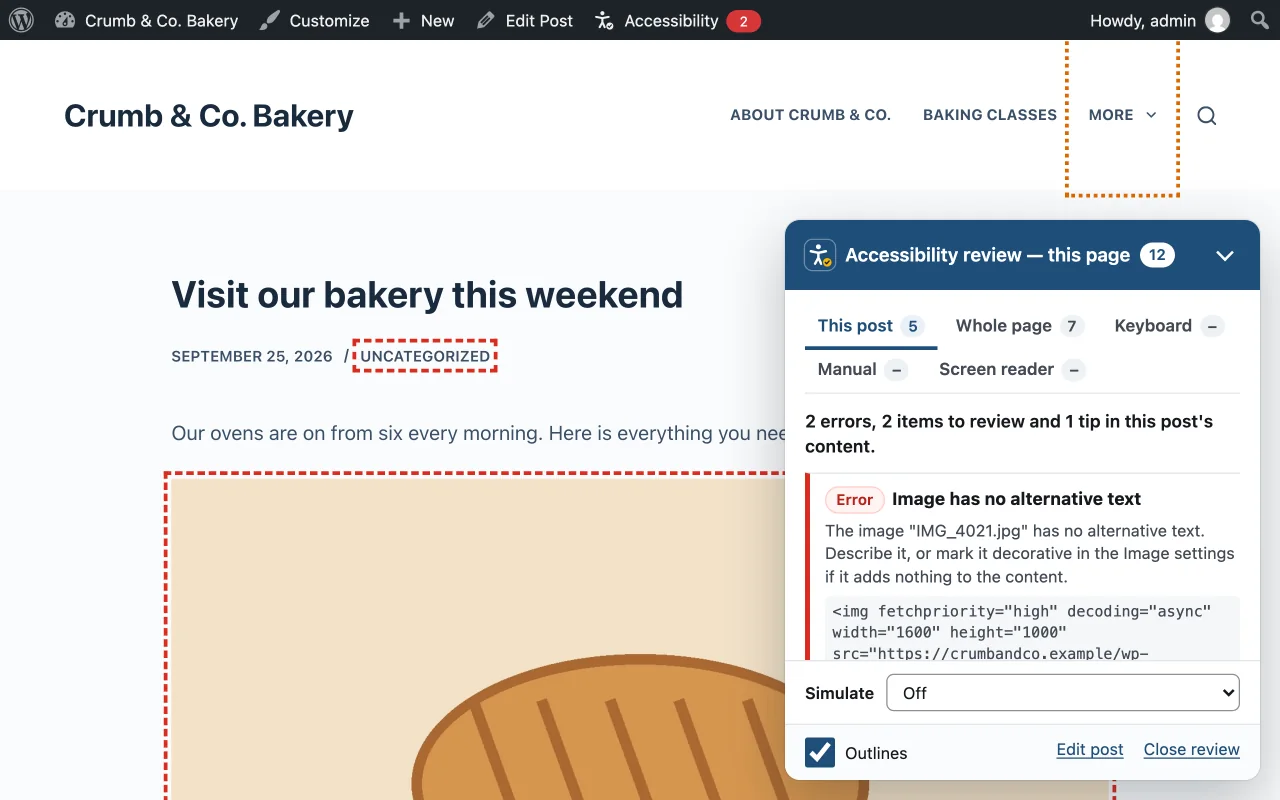
Review mode shows a page's accessibility issues on the front end, inside the theme visitors see. When you view a post, page or product, the blog home page, an archive, search results or the shop page while logged in, Lumtera adds an Accessibility item to the admin bar; on a post it shows a red count when the last saved check found errors. Click it and the page reloads in review mode; click it again, or Close review, to leave.
The review panel has five tabs. This post checks the post's content with the same rules as the editor and outlines each problem where it appears. Whole page checks everything else your browser renders, from the header and menus to the footer, and has its own feature page. Keyboard runs the keyboard walk and the menu and pop-up tests when you ask. Manual holds this page's guided checklist. Screen reader previews the headings, landmarks, links and form fields a screen reader lists, and the page in reading order. Findings show their severity, a short message, Show on page and How to fix with a WCAG link.
Below the tabs, Simulate shows the page as it may look with protanopia, deuteranopia, tritanopia, achromatopsia or low vision. It is an approximation, for spotting information shown by color alone, not for judging contrast ratios. The footer has an Outlines checkbox, an Edit post link and Close review. The panel is drawn in its own isolated layer, so your theme's CSS cannot restyle or hide it, and review pages are never kept by browsers, proxies or page cache plugins.
Why does it matter?
A list of issues is abstract. Seeing the problem on the page, in context, makes it obvious what it is and whether it matters — especially for editors and clients who do not read HTML.
What do you get?
- Issues in the post's content outlined on the real, published page, with Show on page and How to fix for each.
- Tabs for This post, Whole page, Keyboard, Manual and Screen reader: the content, the rendered page, a keyboard walk, the guided checklist and a screen reader preview.
- Simulate protanopia, deuteranopia, tritanopia, achromatopsia or low vision, to spot information shown by color alone.
- Whole-page results are saved to your reports only when you tick Save results to reports.
- Works on posts, pages and products, and on the blog home page, archives, search results and the shop page. Only for logged-in users — visitors never see it.
How does it work?
-
Visit a page while logged in
Lumtera adds an Accessibility item to the admin bar.
-
Turn on review mode
Issues in the content are outlined where they appear, and the Whole page tab checks the rest of the page once the browser is idle.
-
Step through them
The panel explains each issue, says where it comes from, and links to the editor or the part where you fix it.
Who is it for?
-
Clients who do not use the editor
A site owner can open a page they know and see exactly which image or link is the problem, without reading HTML or a report table.
-
Editors checking a page after publishing
Content can read differently once it sits in the theme. Review mode shows each issue in its real surroundings.
-
Consultants walking a team through issues
During a screen share, Show on page moves to each problem in turn, and the Keyboard tab numbers every Tab stop, which makes it easy to explain why it matters.
Good to know
How it behaves, what it needs, and where its limits are.
- Five tabs, different scopes
- This post covers the post's own content, with the same checks as the editor. Whole page and Keyboard cover the rendered page, one page at a time. Lumtera Pro's page checks add many pages at once and scheduled re-checks.
- Who can open it
- Logged-in users with the "Review pages on the site" permission, which every role that can write posts has by default. On a single post, page or product it also needs permission to edit that post. On the blog home page, archives, search results and the shop page it needs the permission to see reports; there the Whole page, Keyboard and Screen reader tabs check the page, and This post is not shown.
- Saving results
- Whole-page results stay in your browser unless "Allow saving whole-page results" is on under Lumtera → Settings → General (it is by default) and you tick Save results to reports. Saved results show in the Overview, the editor sidebar and the coverage meter.
- Dismissing on the page
- A Whole page finding can be dismissed with an optional reason, on this page only or on every page it appears on. Dismissing on every page needs the permission to see reports. Content findings are dismissed in the editor.
- Unusual themes
- If a theme displays the post without WordPress's standard content filter, Lumtera cannot find the content on the page. The panel says so and points you to the editor's Lumtera Accessibility panel; the other tabs still work.
Checks you will see here
-
WCAG 1.1.1 · AError
Image has no alternative text
-
WCAG 2.4.4 · ANeeds review
Link text is vague
-
WCAG 1.4.3 · AAError
Text color has low contrast
Questions
Something else on your mind? Contact support
Does review mode load anything for visitors?
No. The scripts load only for logged-in users who can edit the post (or, on archives and other listing pages, see reports), and only when they turn review mode on.
Can I fix or dismiss issues in review mode?
Whole-page findings can be dismissed there, with an optional reason, on one page or on every page they appear on. Content issues are fixed and dismissed in the editor: use the Edit post link.
Does review mode change my page?
It saves nothing to your content. For that one request, and only for you, the content is wrapped in a container so issues can be outlined. The keyboard walk and the menu and pop-up tests move focus and open menus, then put the page back; if something cannot be put back, the panel offers Reload page to reset.
Why can the counts differ from the editor?
The editor checks what you are editing, including unsaved changes. Review mode checks the saved post as it renders now. The count on the admin bar item comes from the last stored check, and Whole page findings are not part of it.
Is the screen reader tab a real screen reader?
No. It is a preview of what screen readers may announce, worked out in your browser. Confirm with NVDA, free for Windows, or VoiceOver, built into Mac and iPhone.
More in “Find and fix while you write”
-
Free
Live checks in the block editor
A Lumtera Accessibility sidebar that re-checks your post a moment after you stop typing, and shows each problem next to the block that caused it.
-
Free
One-click quick fixes
Skipped heading levels, fake lists, bold "headings", new-tab links, table headers, spacing and low-contrast text colors, fixed in one click. Every fix can be undone.
-
Free
Fixes you approve, with undo
Fix saved content from the Content report or the editor: see the change before and after, edit it, approve it, and undo it later.
Start with the free plugin today
All 88 content checks and 38 whole-page checks, fixes you approve with undo, and the site report — free, with no account and no page limits.