See the whole site Free
Site-wide report and bulk checking
Check every post, page, product and site part, then see the score, errors, review coverage and the issues that repeat across the site. Export it as CSV.
Updated for Lumtera 1.3.0 and Lumtera Pro 1.2.0.
Starts at 0:41: “The overview and WCAG coverage”. Captions are on. Nothing loads from YouTube until you press play.
Overview
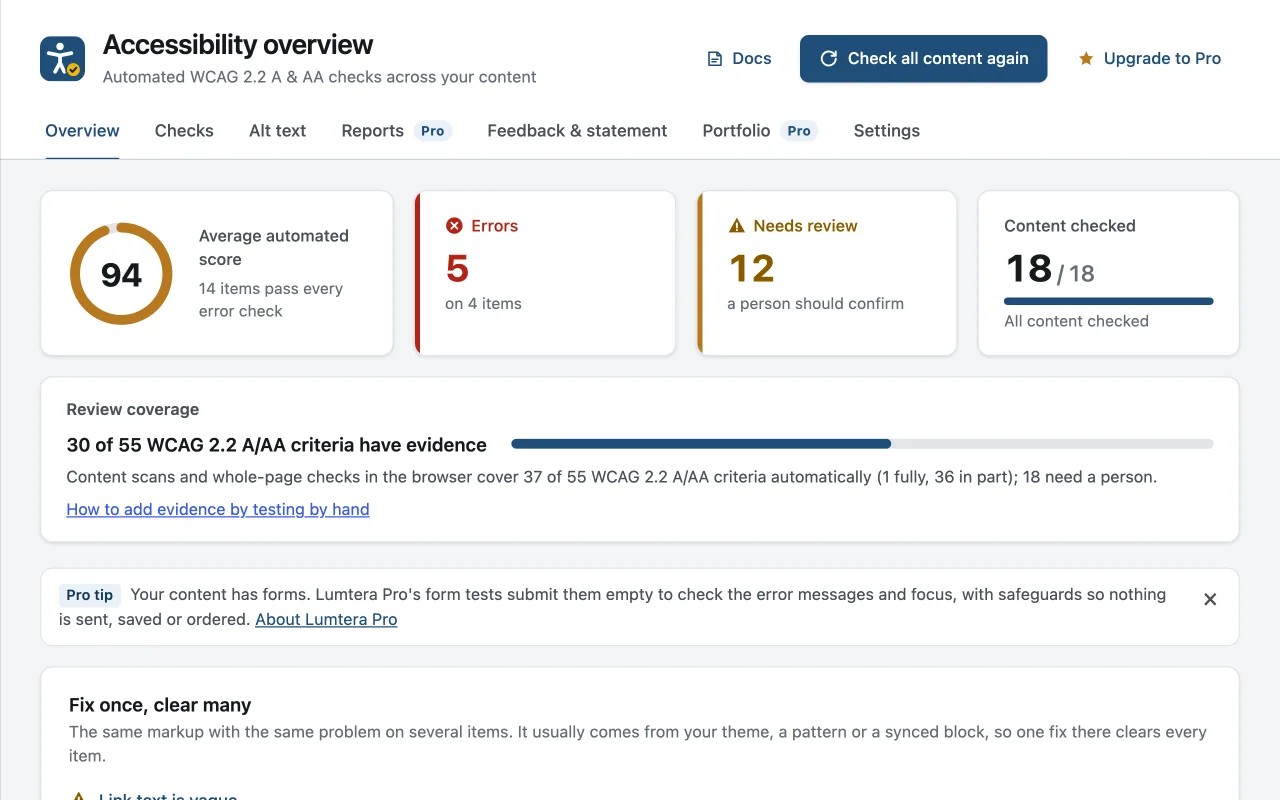
The Overview screen, under Lumtera → Overview, is where you check the whole site at once. Click Check all content and Lumtera works through every item of the content types you enabled, whether published, draft, pending, private or scheduled, and the site parts every page shares. A progress bar shows how far it has got. Keep the tab open while it runs, or click Stop. If a run stops early, for example because the tab was closed, the Overview offers Continue where it stopped instead of starting again. When the check finishes, the results appear first, with a summary of what was found and a link to what to fix. An item that stopped the server is listed under "Items that could not be checked", is not counted as passing, and can be tried again.
The Overview shows the Average automated score, Errors, Needs review and Content checked, with a Review coverage meter beside them: how many of the 55 WCAG 2.2 A/AA criteria have evidence, and how many the enabled checks cover automatically. Below are Most common issues, Needs attention, "Fix once, clear many" for the same markup on several items, and Theme & templates for issues from saved whole-page checks. Later, Check new items checks only what has not been checked yet.
The Content report, under Lumtera → Checks → Content, can be grouped By page, with every item, worst first, and its errors, items to review, tips and score; By issue, where the same problem in the same markup counts once, however many items it is on; or by Site parts, such as menus, widget areas, template parts, synced patterns and navigation. Filter by status, type, issue and severity, and in the By page view, Export CSV downloads what you see. A view switch sets what each person sees first: My content, Site parts & code, or All findings.
Why does it matter?
Checking one post at a time tells you nothing about the site. Before you can plan the work — or answer a client asking "how accessible are we?" — you need every page checked and the results in one place.
What do you get?
- Check all content in small batches, with no page limits and no per-scan fees. If a run stops, it continues where it stopped. When it finishes, your results come first, with a summary of what was found and a link to what to fix.
- An Overview with the average automated score, errors, items needing review, content checked and a review coverage meter.
- A Content report by page, by issue or by site part, where the same issue in the same markup counts once, however many pages it is on.
- CSV export of every finding that matches your filters, in the free plugin.
- A sortable Accessibility column in your post lists, and a dashboard widget.
How does it work?
-
Click Check all content
On Lumtera → Overview. Lumtera works through your content in small batches so the site stays responsive.
-
Read the overview
See where you stand, which issues repeat, and how much of WCAG your checks and manual results cover.
-
Work through the report
Group by issue to fix a pattern once, open Site parts to fix a header or menu in one place, or sort pages by score and start with the worst.
Who is it for?
-
Owners asked "how accessible are we?"
The Overview gives an honest first answer in numbers, and the review coverage meter shows how much of WCAG those numbers speak to.
-
Teams planning clean-up work
By issue shows which pattern to tackle first. Markup shared by many items usually comes from the theme, a pattern or a synced block, so one fix there clears every item.
-
Teams that track work elsewhere
Export CSV gives one row per finding, with post ID, title, URL, type, status, severity, issue, WCAG criterion, level, message and markup, ready for a spreadsheet or ticket import.
Good to know
How it behaves, what it needs, and where its limits are.
- How the batches work
- Each request checks up to 50 items and stops early after about two seconds, which keeps it inside the time limits of shared hosting. Nothing is sent to an outside service.
- Who can see it
- The Overview, Content report, CSV export and dashboard widget need the "See reports and check the site" permission, which editors and administrators have by default. Change it under Lumtera → Settings → Permissions. Roles that cannot edit other people's posts see only published items and their own.
- Staying up to date
- With "Check content on save" on, which is the default, every save updates that item's results, and site parts are checked when they are saved. Changes to check settings apply from the next check, so check all content again to refresh older results.
- How the score works
- An item with no errors and no review items scores 100. Errors lower the score much more than review items, tips do not count, and the score never reaches 0. The site figure is the average of checked items.
- What the report covers
- Post content, including blocks, shortcodes, WooCommerce product descriptions, page-builder layouts and Advanced Custom Fields values, plus site parts, each issue shown with where it comes from. The rendered page, with theme styles, is checked in review mode, and across many pages by Lumtera Pro's page checks.
Questions
Something else on your mind? Contact support
Is bulk checking really free?
Yes. Check all content, custom post types, site parts, the Content report, CSV export, the admin column and the dashboard widget are all in the free plugin, with no limits.
What does the score mean?
It reflects automated findings only. A score of 100 means "no automated issues found". Automated checks find only part of the barriers people meet, which is why a review coverage meter sits next to the score.
Can I export the report?
Yes, in the free plugin. Export CSV on the Content report downloads every finding that matches your filters, one row per issue, and follows your "Show possible issues" choice. From the command line, wp lumtera issues --format=csv does the same.
What does the dashboard widget show?
The average score, errors and items needing review, the items with the most errors, how many items have been checked, and a compact review coverage meter. You can hide it from Screen Options like any other dashboard widget.
Are drafts included?
Yes. Published, draft, pending, private and scheduled items are counted and checked. Trashed items and auto-drafts are not.
More in “See the whole site”
-
Free
Fix at the source, with site parts
Headers, footers, menus, synced patterns and widget areas are checked on their own, so a problem on every page is shown once and fixed once.
-
Free
Honest coverage meter
Next to every automated score, a meter shows how many WCAG 2.2 A/AA criteria the checks cover, how many have evidence and how many need a person.
-
Free
CSV export of the content report
Download the Content report as a spreadsheet, one row per issue, with your filters applied. Free, and limited to what each person may see.
Start with the free plugin today
All 88 content checks and 38 whole-page checks, fixes you approve with undo, and the site report — free, with no account and no page limits.