Find and fix while you write Free
Alt text manager
Every Media Library image with missing or doubtful alt text in one list. Describe an image once and add the text to the posts that show it.
Updated for Lumtera 1.3.0 and Lumtera Pro 1.2.0.
Overview
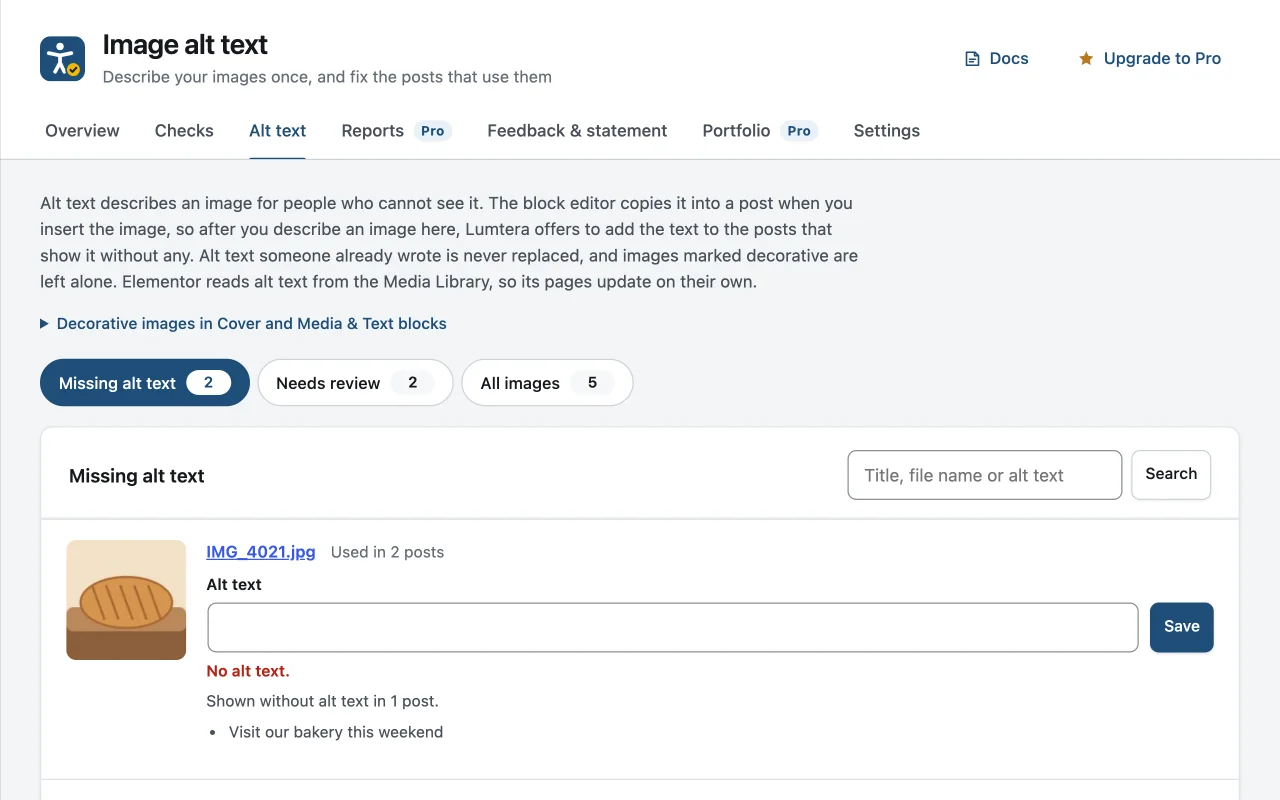
The Alt text screen, under Lumtera → Fixes → Alt text, lists the images in your Media Library in three tabs: Missing alt text, Needs review and All images, each with a count. Needs review holds images whose alt text looks like a file name or a placeholder, starts with words such as "image of", or is very long. Each row shows a thumbnail, the file name and how many checked posts use the image.
Type a description in the row's Alt text field and click Save. The Media Library entry is updated straight away and the new text is checked again. If the image appears without alt text in any posts, the row says how many and offers a button such as "Add it to those 3 posts". When there are two or more, each post has a ticked checkbox, so you can untick one where the image is decorative, such as a Cover background; the button then says "Add it to 2 chosen posts", and the posts left out stay listed.
That last step is where the time is saved. The block editor copies alt text into a post when an image is inserted, so fixing the Media Library alone never reaches posts that already use the image. Lumtera fills only the empty alt attributes of that image, saves each post through WordPress and checks it again.
Why does it matter?
The same image often appears in dozens of posts, each inserted with its own copy of the alt text — usually empty. Fixing them one post at a time is slow enough that nobody does it.
What do you get?
- Images with missing, file-name or placeholder alt text, gathered in one screen.
- See which posts use each image.
- Write a description once and add it to every post that shows the image without one.
- Never overwrites alt text someone already wrote, and keeps a revision wherever the content type supports them.
- With AI alt text turned on, ask for drafts for many images at once, and save only the ones you reviewed.
How does it work?
-
Open the Alt text screen
Under Lumtera → Fixes → Alt text, images that need attention are listed with a preview.
-
Describe the image
Write what it shows or does, as you would describe it to someone who cannot see it.
-
Apply to posts
Lumtera offers to add the text to the posts that show the image without alt text.
Who is it for?
-
Sites with a large archive
A logo, product photo or team portrait used in 40 posts is described once and added to all 40, without opening each post.
-
Online stores
Product photos are often uploaded in bulk with no alt text. The Missing alt text tab turns that backlog into a list someone can work through.
-
Content teams sharing the work
The screen needs the Upload files capability by default, not full admin access. People who cannot edit other people's images see the images they uploaded, and each person can only change posts they are allowed to edit.
Good to know
How it behaves, what it needs, and where its limits are.
- Which blocks it edits
- Lumtera fills alt text in Image, Media & Text, Cover and Custom HTML blocks and in classic content. If the image sits in another block that may store alt text elsewhere, the row says so and you add it in the editor.
- Skipped posts are explained
- Posts you cannot edit are skipped. So are posts with markup, such as an embed, that your account could not save without WordPress filtering it out. The result message says how many were skipped and why.
- Depends on checked content
- Where an image is used comes from Lumtera's check results, so only checked posts are listed. If some content has not been checked, the screen says so and links to the Overview to check it.
- Alt text from photo metadata
- Some photos carry alt text in their IPTC metadata. WordPress 7.0 and later copy it on upload; on older versions Lumtera does the same, and only when the image has no alt text yet.
- No decorative switch on this screen
- The Alt text screen does not mark images as decorative. For a decorative image, leave the alt text empty here and use the Decorative image switch on the Image block in the editor. When you add alt text to an image's posts, untick any post where that copy is decorative, and it is left as it is.
Checks you will see here
-
WCAG 1.1.1 · AError
Image has no alternative text
-
WCAG 1.1.1 · ANeeds review
Alt text looks like a file name
-
WCAG 1.1.1 · ANeeds review
Alt text is a placeholder
Questions
Something else on your mind? Contact support
Will it change my posts without asking?
No. It only updates posts when you ask it to, only where the alt text is empty, and keeps a revision wherever the content type supports revisions.
Do Elementor pages need updating too?
No. Elementor reads alt text from the Media Library, so its pages pick up the new description on their own.
Can I undo a change to posts?
Each post is saved as a normal update, so WordPress keeps a revision wherever that content type supports revisions. You can restore it from the post's revisions screen.
Will it write the descriptions for me?
Not on its own. You write the text. If an administrator has turned on AI alt text, each row gets a Suggest alt text button, and you can ask for drafts for many images at once. Every draft waits for a person to check and save it.
More in “Find and fix while you write”
-
Free
Live checks in the block editor
A Lumtera Accessibility sidebar that re-checks your post a moment after you stop typing, and shows each problem next to the block that caused it.
-
Free
One-click quick fixes
Skipped heading levels, fake lists, bold "headings", new-tab links, table headers, spacing and low-contrast text colors, fixed in one click. Every fix can be undone.
-
Free
Fixes you approve, with undo
Fix saved content from the Content report or the editor: see the change before and after, edit it, approve it, and undo it later.
Start with the free plugin today
All 88 content checks and 38 whole-page checks, fixes you approve with undo, and the site report — free, with no account and no page limits.