Catch regressions and fix at scale Pro
Email and Slack alerts
Hear about it when a publish adds new errors or feedback goes past its target, never twice for the same one, plus a Monday summary and a score history.
Updated for Lumtera 1.3.0 and Lumtera Pro 1.2.0.
Overview
Alerts are set up under Lumtera → Settings → Alerts. Two switches control them: Email me when a publish adds errors, and Weekly summary email. Send to takes one or more addresses separated by commas and starts with the site admin email. Slack webhook is optional and takes an incoming-webhook address from Slack. Send a test alert tries both channels with the saved settings.
Lumtera keeps a fingerprint of the errors on each published post. When a save adds errors that were not there before, it queues one alert right after the save, so the Publish button is never held up. The message names the post, the person who saved it and up to ten of the new errors, with a Fix it now link to the editor. Scheduled page checks send their alerts through the same channels, and so do feedback requests that go past your response target: once each, with a link to the inbox.
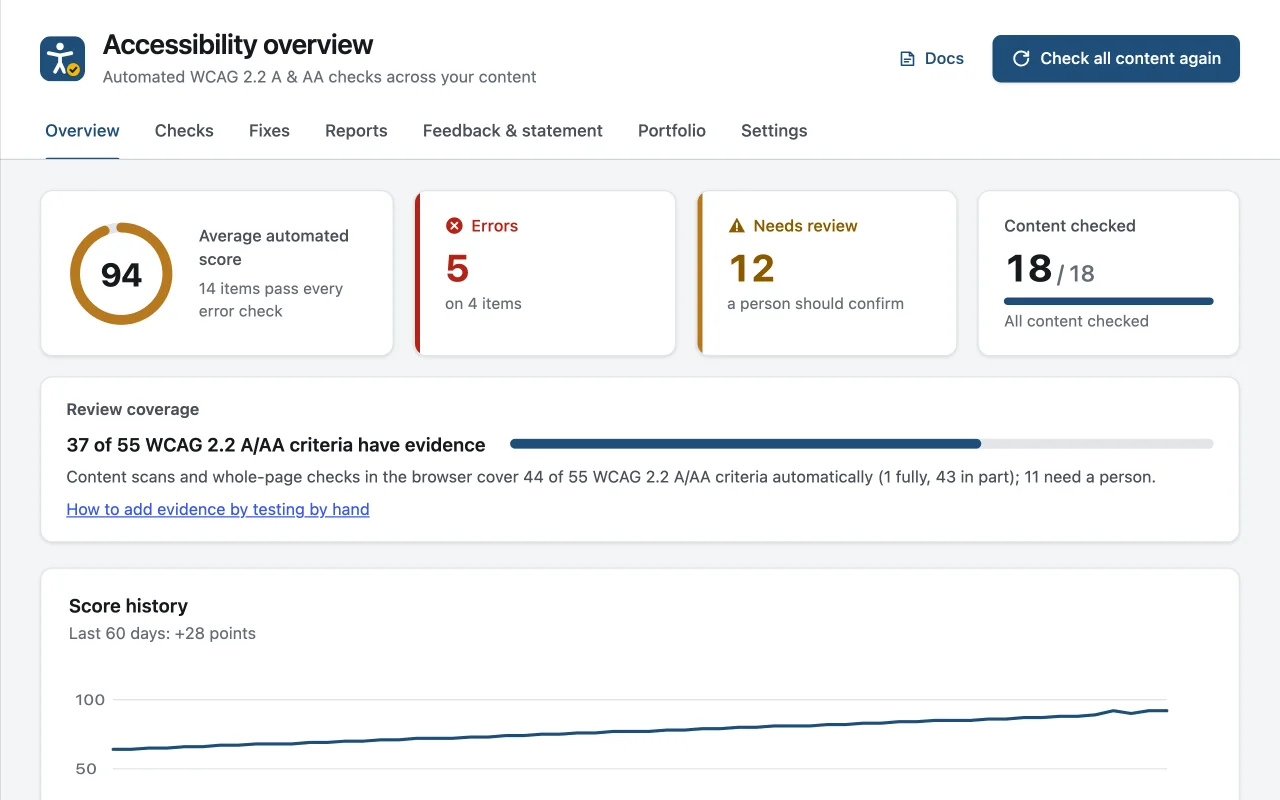
The weekly summary goes out by email every Monday at 09:00 site time. It gives the average score and its change since last week, the error and review totals, the most common issue types and the pages that need attention. When feedback is overdue, a separate weekly email lists it. The Overview screen also gains a Score history chart built from a daily snapshot, with a data table for anyone who prefers numbers to a line.
Why does it matter?
On a site with many authors, the person responsible for accessibility is rarely the person publishing. Without alerts, problems are found by visitors, and their reports can wait unanswered.
What do you get?
- Email and/or Slack alerts when a publish adds new errors.
- Errors are fingerprinted, so saving the same post again never re-alerts.
- One alert when accessibility feedback goes past your response target.
- A weekly summary every Monday with the week's change.
- Daily score snapshots kept for 400 days, shown as a trend chart.
How does it work?
-
Add recipients
Enter email addresses and, optionally, a Slack incoming webhook.
-
Publish as usual
Lumtera compares each publish with what was already known.
-
Act on what is new
Each alert links to the page that changed, or to the feedback inbox.
Who is it for?
-
Sites with many authors
The person responsible for accessibility hears about a new problem the day it is published, without reading every post.
-
Agencies on a retainer
Send alerts to a shared inbox or a Slack channel and spot regressions long before the next monthly report.
-
Teams that answer feedback
An overdue request reaches the same inbox or channel as new errors, so it does not wait unseen.
Good to know
How it behaves, what it needs, and where its limits are.
- Plans and access
- Included in every Pro plan. Changing alert settings needs an administrator.
- What triggers an alert
- Errors on published content, errors new since a page's previous scheduled check, and feedback past its response target. Drafts, items that need review and tips never alert. Bulk scans and imports only set the baseline, and when several posts gain errors in one go you get one summary alert.
- Slack, Teams and other tools
- The Slack field accepts only addresses that start with https://hooks.slack.com/. For Microsoft Teams or your own tools, Lumtera → Settings → Integrations can send events to up to ten webhook endpoints.
- Score history
- One snapshot is saved per day and kept for 400 days. The chart shows the last 90 days and appears from the second day. The weekly summary is sent by email only.
- Email delivery
- Email goes through WordPress's own mail function, so it is only as reliable as your site's mail setup. Send a test alert tells you if sending failed. With white-label on, emails leave out "Sent by Lumtera Pro".
Questions
Something else on your mind? Contact support
Does Slack need an app?
No. A standard Slack incoming webhook URL is all it needs.
Will editing an old post alert about errors it already had?
No. Only errors that were not in the last scan of the published version count as new. Re-saving a post with known errors sends nothing.
Can different people get different alerts?
Not in this version. Alerts and the weekly summary all go to the same Send to list and Slack channel. Fixes and feedback assigned to someone are emailed to that person separately.
Do alerts cover the theme and menus?
Publish alerts cover post content. Scheduled page checks fetch whole pages, theme included, and alert through the same email and Slack settings when a page gains new errors.
More in “Catch regressions and fix at scale”
-
Pro
Compare scans
See what is new, what was fixed and what is still there between two scans, by check and by site part, with the likely cause marked.
-
Pro
Fixes queue: bulk fixes you review and approve
Propose the same fix on many pages at once — built-in fixes or text you write (and AI drafts, only if you connect an AI provider) — review every change, then apply and undo them in the background.
-
Pro
Fix tracking
Turn issues into tasks, assign them, and let Lumtera close each task when a re-scan confirms the fix.
Email and Slack alerts
Get it with Lumtera Pro
In every Pro plan. Personal is $149 a year. Pro installs alongside the free plugin, and your settings and results stay.
14-day refund (opens in a new tab)Keeps working if you don't renew