See the whole site Free
Adjustable checks and dismissals
Set any check to Error, Needs review, Tip or Off. Dismiss an issue with a reason, and it stays dismissed — with a record of who, when and why.
Updated for Lumtera 1.3.0 and Lumtera Pro 1.2.0.
Overview
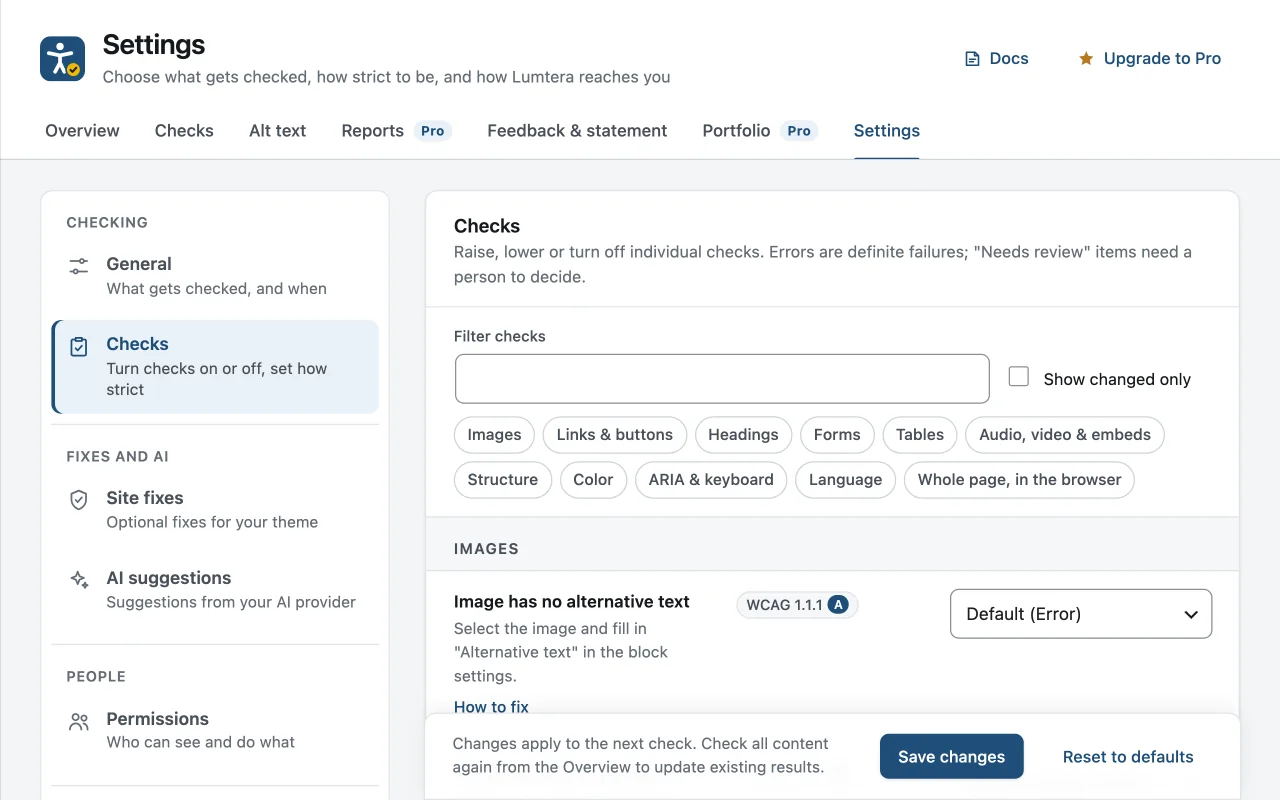
Every check Lumtera runs is listed under Lumtera → Settings → Checks, grouped by category, such as images, links and headings, with the whole-page checks under "Whole page, in the browser". Each row shows the check's name, a short hint on how to fix it and its WCAG criterion and level. Its menu offers Default, with the built-in severity in brackets, then Error, Needs review, Tip or Off. Find checks filters the list, and Show changed only lists what you changed.
Out of the box, the {checks} content checks split into 23 Error, 40 Needs review and 25 Tip. Errors are failures a machine can confirm. Needs review items need a person to decide, for example whether empty alt text really means an image is decorative. A severity you choose applies to every finding from that check. Changes apply from the next check, so check all content again from the Overview to update older results.
Dismissals deal with single findings. In the block editor sidebar, expand an issue and choose Dismiss… (Dismiss this error… for errors), add an optional reason under "Why is this not a problem?" and confirm. The item moves to a dismissed list that shows who dismissed it, when, and the note, with a Restore button to bring it back. The Elementor panel and the classic editor box work the same way, and review mode dismisses whole-page findings on one page or on every page they appear on.
Why does it matter?
Every site has its own conventions, and some findings are simply decisions a person has made. A checker that cannot be tuned, or that brings back the same dismissed item after every scan, trains people to ignore it.
What do you get?
- Change the severity of any check, or turn it off, site-wide — whole-page checks included.
- Checks a machine cannot decide are "Needs review", never "Error" — built not to cry wolf.
- Dismissals survive re-checks, and the Dismissed view in the Content report lists who dismissed each issue, when and why, with Restore.
- When a dismissed issue comes back, "Showing again" says why.
- Choose which roles can dismiss errors under Lumtera → Settings → Permissions.
How does it work?
-
Open Lumtera → Settings → Checks
Every check is listed with its WCAG criterion, grouped by category.
-
Set severities
Make a check stricter, softer, or turn it off.
-
Dismiss with a reason
In the block editor sidebar, the Elementor panel or the classic editor box, dismiss an item and optionally say why.
Who is it for?
-
Sites with house conventions
If a finding never applies to your content, turn that check down to a Tip or Off instead of teaching people to ignore the sidebar.
-
Organizations with stricter targets
Raise a review item to Error, so it lowers the score more and triggers the pre-publish confirmation when that mode is on.
-
Editorial teams
A dismissal with a reason tells the next editor why a finding was accepted, so the same question is not debated again.
Good to know
How it behaves, what it needs, and where its limits are.
- Dismissals follow the markup
- A dismissal is tied to the check and the exact markup that caused it. It survives re-checks and plugin updates. If that markup changes, the issue can return, marked "Showing again" with the reason, who dismissed the earlier one, when, and the note they gave.
- A dismissal never hides something worse
- Lumtera stores the severity each item was dismissed at. If the same markup later produces a more severe finding, it is shown again, and "Showing again" says so.
- Where you can dismiss
- In the block editor sidebar, the Elementor panel and the classic editor box, each with an optional reason, and for whole-page findings in review mode. The Content report does not dismiss issues, but its Dismissed view lists every dismissal with who, when and why, and restores one or several at once.
- Who can change what
- Only administrators can change check settings. Anyone who can edit a post can dismiss its review items and tips. Dismissing errors needs the Dismiss errors permission, set per role under Lumtera → Settings → Permissions; dismissing a whole-page finding on every page needs the permission to see reports.
- One setting for the whole site
- Severity settings apply to every content type and every author. There is no per-post-type or per-user setting.
Questions
Something else on your mind? Contact support
Who can dismiss issues?
Anyone who can edit the post can dismiss review items and tips. Errors need a role with the Dismiss errors permission, which editors and administrators have by default. Change it under Lumtera → Settings → Permissions; developers can also use the lumtera_dismiss_errors_capability filter.
Does turning a check off remove old results?
Not straight away. The setting applies from the next check. Click Check all content again on the Overview, or run wp lumtera scan --all, to update stored results.
Are dismissals personal data?
They store who dismissed an item, when, and the note. Lumtera connects to the WordPress personal data export and erase tools, and adds a paragraph to the privacy policy guide.
Can I see the settings from the command line?
Yes. wp lumtera rules lists every check with its WCAG criterion, level, severity and the setting chosen on the Checks screen.
More in “See the whole site”
-
Free
Site-wide report and bulk checking
Check every post, page, product and site part, then see the score, errors, review coverage and the issues that repeat across the site. Export it as CSV.
-
Free
Fix at the source, with site parts
Headers, footers, menus, synced patterns and widget areas are checked on their own, so a problem on every page is shown once and fixed once.
-
Free
Honest coverage meter
Next to every automated score, a meter shows how many WCAG 2.2 A/AA criteria the checks cover, how many have evidence and how many need a person.
Start with the free plugin today
All 88 content checks and 38 whole-page checks, fixes you approve with undo, and the site report — free, with no account and no page limits.