Want to know how to create a travel booking website in 2026 — without paying SaaS platforms like Rezdy ($249/month + 3% per booking), Bokun ($499/month + 1%), or FareHarbor (4–6% per booking)? This step-by-step tutorial shows you exactly how to launch a complete tour and travel booking business using WordPress + Yatra + Resa, both free, both built by our team at MantraBrain.
You’ll have your first tour live in under an hour, accept PayPal payments on day one, distribute to Viator and GetYourGuide (with Yatra Pro Agency), and keep 100% of every booking — because Yatra never takes a cut. We’ll walk through it screen by screen.
Why WordPress + Yatra Beats SaaS Tour Booking Platforms
Before we dive into the tutorial, the elephant in the room: why not just use Rezdy, Bokun, or FareHarbor?
| Cost factor | Rezdy | Bokun | Yatra (Free) |
|---|---|---|---|
| Monthly fee | $49–$249/mo | $0–$499/mo | $0 |
| Per-booking commission | 3% | 1–2.9% | 0% |
| Channel manager (Viator, GetYourGuide) | Included | Included | Yatra Pro Agency ($499/yr) |
| Annual cost (~$50K in bookings) | $4,488 | $2,488 | $0–$499 |
| Data ownership | SaaS controls | Tripadvisor controls | You own everything in WordPress |
| Custom domain + branding | Extra setup | Extra setup | Your existing WordPress domain |
For most tour operators, travel agencies, adventure companies, and workshop hosts, the math is decisive. WordPress + a self-hosted travel booking plugin gives you the same functionality without monthly fees or per-booking commissions — forever.
What You Need to Create a Travel Booking Website
Five things. Total upfront cost: ~$60–100 for the year (just domain + hosting).
| What | Recommendation | Cost |
|---|---|---|
| Domain name | Namecheap, Cloudflare Registrar, Porkbun | $10–15/yr |
| WordPress hosting | Hostinger, SiteGround, Cloudways | $3–15/mo |
| CMS | WordPress (self-hosted) | Free |
| Theme | Resa (free, Yatra-native) | Free |
| Booking plugin | Yatra (free on WP.org) | Free |
| Payment gateway | PayPal Business account (free) | Free + standard transaction fees |
Total first-year cost on the cheap path: ~$60–100. Ongoing cost if you stay free-tier: just your hosting bill. Yatra Pro upgrade is optional (Stripe + Razorpay + OTAs + 19 Pro modules), pricing breakdown below.
Why We Recommend Yatra + Resa for Travel Booking Websites
Full disclosure: Yatra and Resa are both built by our team at MantraBrain. We recommend them because, after benchmarking against every actively-maintained WordPress travel-booking plugin, this is the only combination where:
- ✅ Native PayPal checkout in the free plugin — no WooCommerce required, no separate commerce plugin to install
- ✅ Trips, departures, capacity, traveler types included free — most competitors gate these behind Pro
- ✅ 0% per-booking commission, ever — your customer pays your gateway account directly
- ✅ Theme + plugin from the same team — booking widget, trip cards, departure widget all render perfectly out of the box (no CSS work)
- ✅ Lifetime license option — Yatra Pro lifetime from $499 (no SaaS renewal cycle)
- ✅ 19 Pro add-ons when you outgrow free — Stripe, Razorpay, OTA channel manager, AI assistant, WhatsApp notifications, white-label
For a deep feature-by-feature comparison vs WP Travel Engine, WP Travel, Tourfic, Travelpayouts, see our best free WordPress travel plugins guide. For the theme side, see best free WordPress travel themes. For the standalone Yatra plugin review, see Yatra plugin review.
Step 1: Pick Your Travel Niche
Before you touch any tech, decide what you’re selling. “Travel” is too broad to compete in. Niches that work on a Yatra-powered site:
- Adventure operators — trekking, climbing, kayaking, mountaineering, expeditions
- Day-tour operators — city walks, food tours, museum visits, brewery crawls, photography tours
- Travel agencies — holiday packages, custom itineraries, group tours
- Activity providers — cooking classes, surf lessons, dance workshops
- Resort & retreat hosts — yoga retreats, wellness packages, writers’ residencies
- Transport & transfer services — airport shuttles, scenic drives, day-trip transportation
The narrower the niche, the easier it is to rank in Google and build a brand. “Kathmandu trekking” beats “adventure travel.” “Tuscan day tours from Florence” beats “Italy tours.”
Step 2: Buy a Domain + Hosting
- Pick a domain. Short, brandable, .com preferred. Country TLDs (.com.np, .co.uk, .com.au) work for region-specific operators. Avoid hyphens.
- Pick a host. Hostinger ($3/mo, cheapest viable), SiteGround ($4/mo, balanced), Cloudways ($14/mo, scales to 50K+ monthly visits). See our best WordPress hosting services guide for the full comparison.
- Register + buy in one go. Most hosts bundle domain registration with the hosting plan. ~30 minutes total.
Step 3: Install WordPress
Almost every WordPress host ships a one-click WordPress installer. From your hosting dashboard, find Install WordPress → enter site title and admin credentials → done. Five minutes.
Log into your WP admin at yoursite.com/wp-admin. You’ll see the default Twenty Twenty-Five theme — we’re replacing it next.
Step 4: Install Resa — the Yatra-Native WordPress Travel Theme
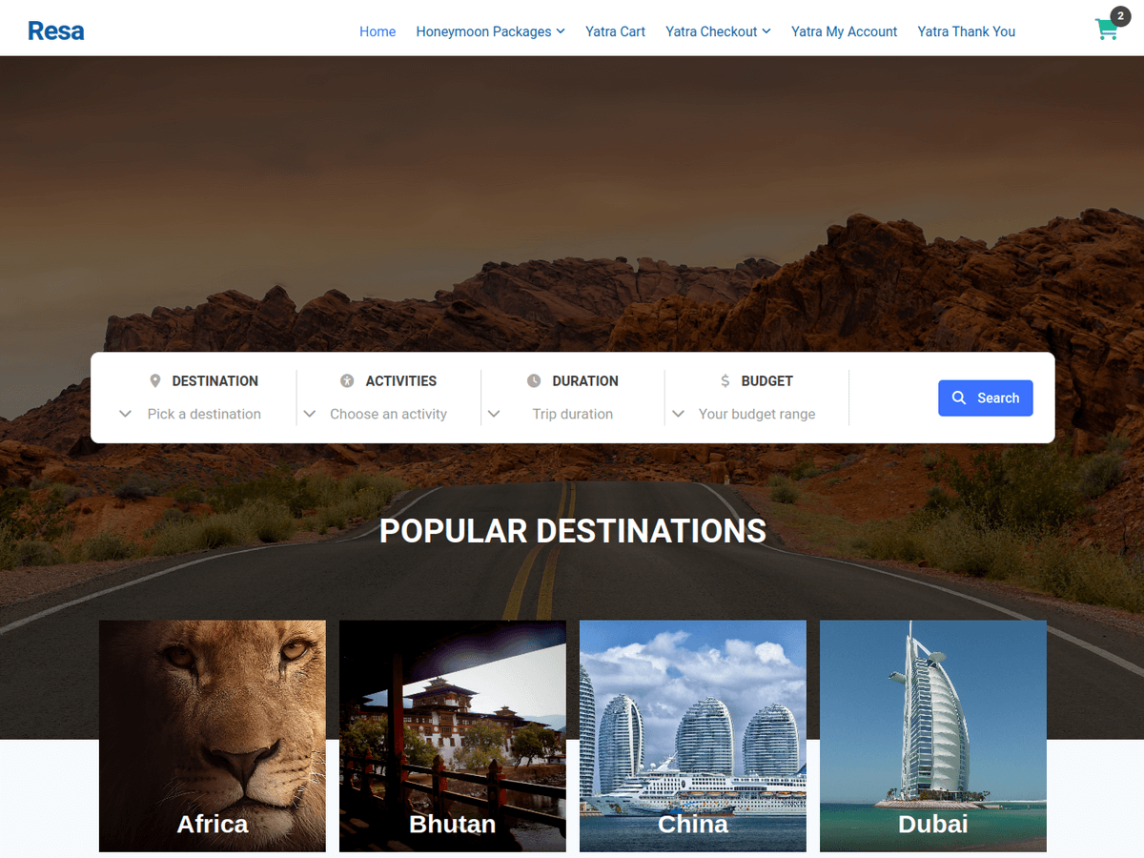
Theme choice determines layout, mobile speed, ad-readiness, SEO defaults, and how much CSS work you’ll do post-launch. For a travel booking site we recommend Resa by MantraBrain — the only free WordPress theme on the directory engineered specifically to render Yatra’s booking widget, trip cards, departure widget, and itinerary blocks without custom CSS.
- WP Admin: Appearance → Themes → Add New
- Search for “Resa”
- Click Install, then Activate
- Customize brand color, logo, header layout in Appearance → Customize
- Lighthouse 95+ on mobile — critical for booking conversion
- Schema.org markup (TouristTrip, Article, BreadcrumbList) baked in
- WCAG AA accessibility out of the box
- WPML / Polylang / RTL ready for multilingual travel sites
- Free forever on WordPress.org
For alternatives, see our best free WordPress travel themes guide.
Step 5: Install the Yatra Travel Booking Plugin
- In WordPress admin, go to Plugins → Add New
- Search for “Yatra”
- Click Install Now, then Activate
- You’ll see a new “Yatra” menu in the WordPress admin sidebar
- Open Yatra → Settings, run through the onboarding wizard (currency, time zone, basic email templates)
Setup takes 3–5 minutes. Want to try Yatra Pro before committing? Try the live sandbox — no install, no credit card.
Step 6: Connect a Payment Gateway
- Sign up for a PayPal Business account if you don’t have one (free).
- In WordPress, go to Yatra → Settings → Payment Gateways.
- Enable PayPal, paste your PayPal email or API credentials.
- Save. Done.
If you want cards via Stripe, regional gateways (Razorpay for India, Paystack for Africa, Mollie for Europe, Square, Authorize.Net), or recurring subscriptions, upgrade to Yatra Pro. Current sale pricing:
| Plan | Yearly (sale) | Lifetime | Sites | What unlocks |
|---|---|---|---|---|
| Personal | $99/yr | $499 one-time | 1 | 7 premium gateways (Stripe, Razorpay, Mollie, Paystack, Square, Authorize.Net, Bank Transfer) + 14 core Pro modules |
| Growth | $149/yr | $499 one-time | 1 | Everything in Personal + AI Assistant + WhatsApp Notifications |
| Agency | $499/yr | $1,999 one-time | 30 yr / 15 life | Everything in Growth + Channel Manager (Viator + GetYourGuide) + Webhooks + White Label + Team & Access |
Step 7: Create Your First Trip
- Go to Yatra → Trips → Add New
- Give your trip a title (e.g., “3-Day Annapurna Base Camp Trek from Pokhara”)
- Write a compelling description in the main editor — what’s included, who it’s for, what to expect
- Set a featured image (1200×630 px works well for social sharing)
- In the Trip Settings sidebar:
- Price: Per-traveler price (or per-package)
- Duration: Number of days/nights
- Difficulty: Easy / Moderate / Challenging / Strenuous
- Destination & Activity Type: Helps customers filter
- Gallery: Upload multiple images of the trip
- Itinerary: Build day-by-day breakdown using the itinerary editor
- Click Save Draft
Step 8: Configure Departures, Capacity & Pricing
This is where Yatra differentiates from generic ecommerce plugins. Trips have departures (specific dates with their own capacity, pricing, and booking cutoff), not just stock-on-hand.
- In your trip editor, go to the Departures tab
- Click Add Departure
- Set the departure date (or recurring date rules for weekly tours)
- Set capacity (max travelers for this departure)
- Set cutoff window (e.g., booking closes 24 hours before departure)
- Optional: override price for this specific departure (peak season, holiday surge)
- Save
- Repeat for as many departures as you offer
For traveler-type pricing (Adult / Child / Infant / Porter at different rates), set up traveler categories in Yatra → Settings → Traveler Types.
Step 9: Configure Email Notifications
- Go to Yatra → Settings → Emails
- Customize the four core templates: booking confirmation, payment receipt, cancellation, T-1 reminder (sent 1 day before departure)
- Use placeholders for customer name, trip title, departure date, etc.
- Save
For multi-step email sequences (welcome series, upsell sequences, post-tour follow-ups), upgrade to Yatra Pro Personal tier which includes the Email Automation module.
Step 10: Test the Full Booking Flow
Before promoting, test end-to-end as a real customer:
- Use a different browser (or incognito mode)
- Visit your trip page
- Click Book Now → select departure + traveler count → fill traveler details → complete PayPal checkout (use PayPal’s sandbox or a $1 test purchase)
- Confirm: booking confirmation email arrives, payment receipt arrives, booking appears in Yatra → Bookings, customer can view it in their account dashboard
- Refund the test transaction in PayPal
Step 11: SEO + Speed Optimization for Travel Sites
Travel content lives or dies by Google traffic. Three things matter most:
- TouristTrip schema markup — Resa emits this automatically for every trip page; Yatra adds Product / Offer / AggregateRating schema for the booking widget. Together they make your trip pages eligible for Google’s rich travel results.
- Sitemap submission — install Rank Math (free), submit your XML sitemap to Google Search Console + Bing Webmaster Tools.
- Core Web Vitals — Resa starts you above 95 Lighthouse mobile. Keep it there by lazy-loading trip galleries, compressing images, avoiding heavy chat-widget scripts.
For deeper SEO guidance, see our WordPress SEO tips for beginners guide.
Step 12: Promote Your Travel Booking Website
The site is live. Now the actual work: getting bookings. The proven playbook for a new tour operator:
- OTA distribution (Viator + GetYourGuide) — upgrade to Yatra Pro Agency, enable Channel Manager, get your tours listed on Viator and GetYourGuide. Real-time bookings sync back to your WordPress site. Anti-overbooking locks prevent the same seat from selling twice. Note: initial OTA approval takes 2–6 weeks regardless of plugin — apply early.
- SEO content — publish 10–20 destination guides, packing lists, itinerary breakdowns, FAQ articles linked to your tour pages. Travel buyers research extensively before booking.
- Email list — capture emails from day one with a “Free 7-day Annapurna packing checklist” or similar lead magnet. Pair with Yatra Pro Personal’s Email Automation for multi-step sequences.
- One social platform — pick the one your niche lives on. Instagram for visual travel (adventure, photography). YouTube for long-form trip reports. TikTok for younger travelers. LinkedIn for corporate travel.
- Google + Bing Ads — once you have organic conversion data showing what tours sell, run paid ads to those specific tour pages.
- WhatsApp notifications — upgrade to Yatra Pro Growth tier for WhatsApp Cloud API integration. Booking confirmations + reminders + departure updates over WhatsApp dramatically reduce no-show rates for adventure tours.
- Partner channels — hotels, hostels, airlines, travel agents in your region. Offer them affiliate commissions for referrals (Webhooks module in Yatra Pro Agency can integrate with affiliate platforms via Zapier).
Types of Travel Businesses You Can Run on Yatra
- Adventure expedition operator — Himalayan trekking, safari outfits, climbing companies. Day-by-day itinerary, gear lists, multi-day departures, per-traveler waiver consent (Yatra Pro Trip Consent module).
- Day-tour & activity provider — city walks, kayak rentals, food tours, museum visits. Recurring departures, per-departure capacity, cutoff windows, WhatsApp reminders.
- Workshop & experience host — cooking classes, photography workshops, yoga retreats. Fixed-capacity sessions, custom intake fields, waitlist when sold out.
- Travel agency — holiday packages, custom itineraries, group tours. Multi-trip catalog, enquiry-driven sales, deposit + balance flows.
- Multi-brand operator / agency reseller — Yatra Pro Agency covers 30 client sites with full admin white-label.
- Regional / multilingual operator — WPML/Polylang ready. Razorpay (INR), Paystack (NGN/KES/ZAR), Mollie (EUR), Square, Authorize.Net.
Frequently Asked Questions
How much does it cost to create a travel booking website?
Roughly $60–$200/year on the free stack: domain ($12), WordPress hosting ($50–$120/yr), and optionally Yatra Pro ($99–$499/yr) when you need Stripe, OTA distribution, WhatsApp notifications, or white-label. The Yatra plugin itself is free. Compared to Rezdy ($2,988–$5,988/yr) or Bokun (per-booking fees), the WordPress route saves $2–5K/year forever — and you own all customer data.
Which is the best WordPress plugin for a travel booking website?
Yatra for most tour operators in 2026 — native PayPal checkout in the free version, 0% per-booking fees, lifetime license option, OTA channel manager (Viator + GetYourGuide) in Agency tier. WP Travel Engine is the established alternative with the biggest user base (20K+ installs). See our full WordPress travel plugin comparison.
Do I need to know how to code to create a travel booking website?
No. WordPress + Yatra + Resa is designed for non-developers. Theme setup is done in the WP Customizer (live preview, no CSS). Trip creation is drag-and-drop. Plugin installation is point-and-click. The total tech you need to learn is roughly equivalent to using Microsoft Word.
Can I sell tours with PayPal only, or do I need Stripe?
PayPal-only is enough to launch. Yatra supports PayPal natively in the free plugin. When you want cards, Apple Pay, Google Pay, or recurring subscriptions, upgrade to Yatra Pro Personal ($99/yr or $499 lifetime) which adds Stripe + 6 more gateways (Razorpay for India, Paystack for Africa, Mollie for Europe, Square, Authorize.Net, Bank Transfer).
Can I distribute my tours to Viator and GetYourGuide?
Yes — Yatra Pro Agency tier ($499/yr or $1,999 lifetime) includes the Channel Manager module. Tours sync to Viator and GetYourGuide via their official APIs. Bookings flow back via signed webhooks; anti-overbooking locks prevent two channels from selling the same seat. Note: OTA approval (separate from the plugin) typically takes 2–6 weeks.
Can I create a travel booking website without WordPress?
Yes — SaaS platforms like Rezdy ($49–$249/month + 3% per booking), Bokun ($0–$499/month + 1–2.9% per booking), FareHarbor (4–6% per booking, no monthly fee), TrekkSoft, or Peek Pro all let you create tour booking sites without WordPress. The tradeoff: monthly fees forever, per-booking commissions, and you don’t own customer data or your domain experience. For a long-term tour business, self-hosted WordPress + Yatra is dramatically cheaper and gives you full ownership.
How long does it take to launch a travel booking website?
Technical setup (hosting + WordPress + Resa + Yatra + PayPal config) takes under an hour. Adding your first 3–5 tours with full itineraries, photos, and departure dates typically takes a weekend. Getting your first paying booking depends on your existing audience and marketing — anywhere from a few days (if you have an email list of past clients) to a few months (if starting from zero).
Does Yatra take a percentage of bookings?
No. Yatra is not in the payment path — your customer pays your gateway account directly. The plugin doesn’t proxy webhooks, doesn’t see credit card numbers, and doesn’t take a commission. The Pro license fee (or lifetime fee) is the only thing you pay MantraBrain. Major advantage over SaaS competitors like Rezdy (3% per booking) and Bokun (1–2.9% per booking).
Can I run a travel booking website in multiple currencies?
Yes. Yatra supports multi-currency display, and the premium gateways in Yatra Pro Personal (Stripe, Razorpay, Mollie, Paystack, Square, Authorize.Net) cover INR, USD, EUR, GBP, NGN, KES, ZAR and 100+ other currencies depending on the gateway. Combine with WPML or Polylang for multilingual translation.
Ready to Launch Your Travel Booking Website?
You now have a complete blueprint. The fastest path from here:
- Buy hosting + domain (today, ~30 min)
- Install WordPress + Resa + Yatra (today, ~20 min)
- Connect PayPal (today, ~5 min)
- Outline your first 3 tours (this week)
- Add tours, departures, photos, itineraries (this week)
- Test the booking flow + launch (within 2 weeks)
- Tell your network — friends, past clients, local hotels — first 5 bookings + 5 testimonials (within 4 weeks)
- Apply for Viator / GetYourGuide approval (4–6 week lead time — start now if you want OTA distribution)
The hardest part isn’t the tech — it’s deciding to start. The technical setup is genuinely under an hour with Yatra + Resa. Everything after that is operating a real tour business, which is exactly what you want to be doing.
Related Reading
- Yatra Plugin Review (2026): Honest WordPress Travel Booking Verdict
- Best Free WordPress Travel Plugins 2026: 6 Tested Picks
- Best Free WordPress Travel Themes 2026: Resa Wins
- Best WordPress Hosting Services 2026
- WordPress SEO Tips for Beginners 2026
- Best WordPress Invoice Plugin (2026) — for billing custom packages